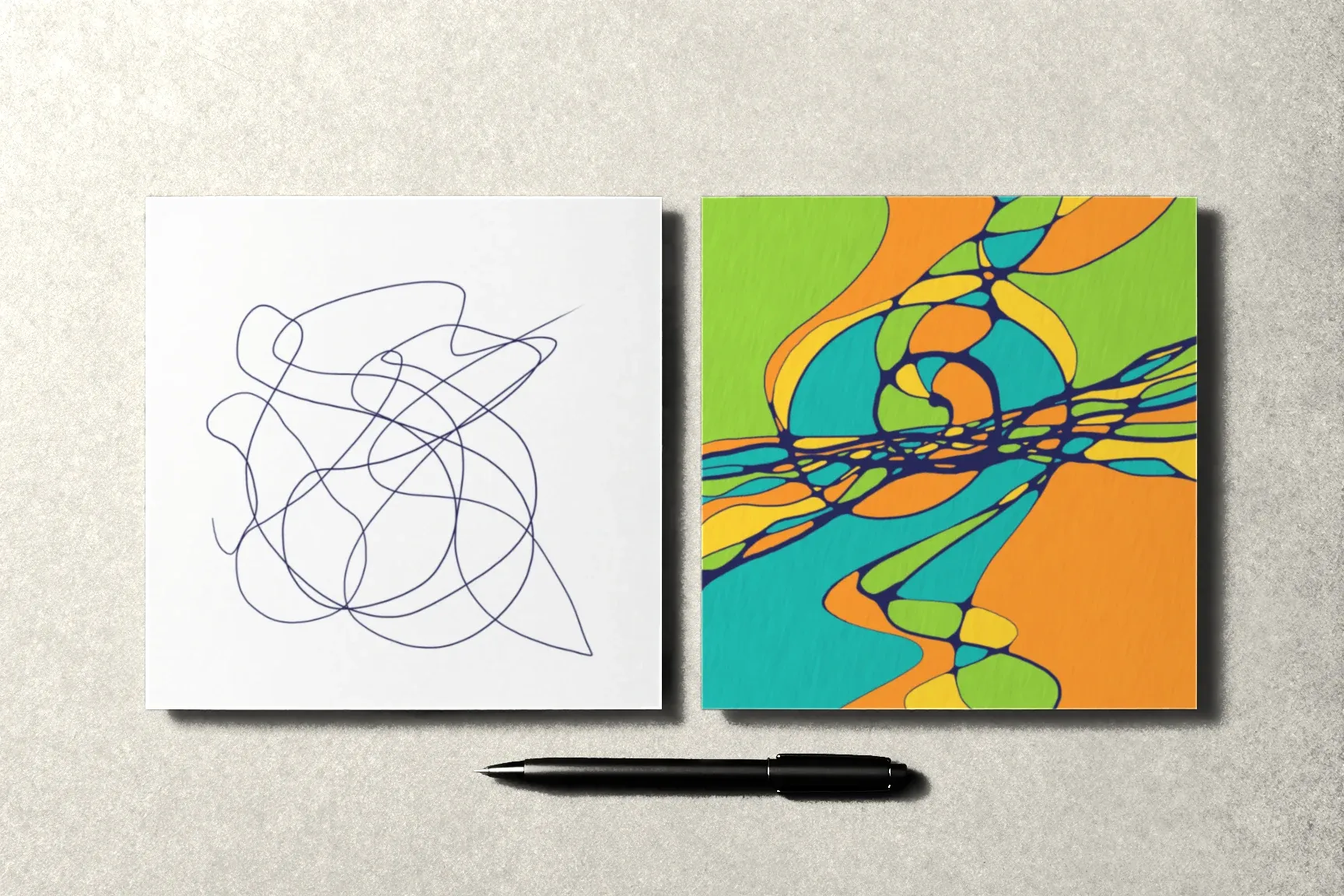
The practice journal is the part of Neurojournal where your drawings are kept: a photo of the page and a few words about it. Here’s how to record a practice, what the journal looks like, who can see your entries, and how to manage them.
What an entry is
A journal entry is:
- a photo of your drawing — the one you made on paper;
- a few words — what it left you with, what you noticed, what you want to try next. This field is optional;
- a date — the day you recorded it;
- a lesson — if you record the practice from a lesson page, the entry shows which lesson it belongs to.
How to record a practice
There are two ways in:
- From a lesson page. Below the lesson text there’s a “Record this practice” button. The entry is linked to that lesson automatically.
- From the journal. In the “Practice journal” section of your account there’s a “Record a practice” button, for a free drawing with no lesson attached.
Then:
- Choose a photo — from your phone’s gallery or your computer. JPEG, PNG, WebP, and AVIF all work.
- Add a few words if you like. The hint above the field reminds you: it’s optional, and nobody else reads it.
- Save. After saving you can record another practice right away or go to your journal.
How to take a photo that looks like the paper is in How to Photograph a Drawing.
What happens to your photo
A phone photo often weighs 8–12 MB. Before uploading, your browser shrinks it: the long side down to 2,000 pixels, in WebP format. That’s enough to see the lines and colors clearly, and the photo opens quickly even on a slow connection.
The photo is stored privately: only your account can get to it.
What the journal looks like
The journal shows entries from newest to oldest:
- the photo of the drawing;
- the date;
- your words about it — or a note that this one has none;
- the lesson’s title, if the entry was made from a lesson.
The latest entries come first, and “Show earlier practices” opens the ones before.
How to edit or delete an entry
- Edit the words. Each entry has “Edit the note,” where you can add to or rewrite the text.
- Delete an entry. “Delete,” then confirm with “Delete for good.” The photo is deleted along with the entry.
Who can see your entries
Only you. The journal isn’t public: there’s no profile, no feed, no likes or comments. Entries aren’t shown to other readers and aren’t used as “testimonials” on the site.
How to take your data with you
- Download a copy. Your account has “Download a copy of my data”: entries come as a single file, and photos as links you can download them from. The links expire after a while, so if you need a fresh copy, just ask for it again.
- Delete everything. Deleting your account removes everything stored in it from Neurojournal: photos, entries, course progress. If you have a subscription, it’s canceled first.
The details of what’s stored and how are in the privacy policy — there’s a link to it in the footer of every page.
How to get the most out of it
A few tips so the journal actually helps:
- record right after a session, while the page is still on the table;
- keep it short: a sentence or two;
- look back once a month — that’s where you see your drawings change.
What to write is in What to Write After a Drawing: 15 Questions, and how to look back over a month is in A Month of Practice.
Where to start
The first module of the Neurojournal course is open without an account: start there, and the journal will be in your account as soon as you create one.